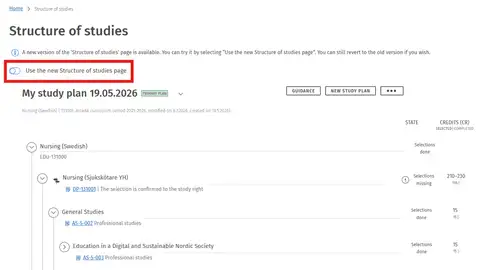
On this page you can read about basic features of your study plan.
If you have not already activated your study plan, see instructions for creating a study plan here.
Basic features
Sisu has several features accessible only through your primary study plan (if you have several study plans, you need to make sure you have marked the current one as your Primary plan).
Such features include the following:
- Creation of new content or content that deviates from the predetermined structure of the study plan
- Graduation requests and graduation
- Requests for the recognition of prior learning and related decisions
- Applications for an extension of the right to study and related decisions
It is crucial that you keep your primary study plan up to date. If you wish to have another study plan as your primary plan, click the button with three black dots in the upper right corner of the Structure of Studies page. A drop-down menu will appear; click on Select as the primary plan.
-
Printing a study plan
You can print your study plan on paper or save it as a PDF file. The print will display the status of the study plan as well as scheduled and completed studies. Please note that, for the time being, study drafts are not displayed in print-outs.
Click the button with three black dots in the upper right corner of the page Structure of Studies. Select Print plan from the drop-down menu.
If no such window pops up, you can open one by clicking the Print button in the top right corner of the study plan that you wish to print. If you wish to return to the edit mode, click the button Go back to structure.
-
Copy as a new plan
With this function you can copy your current study plan as a template for creating a new one. When you create a new study plan with this function it will be named as COPY.
-
Deleting a study plan
First, open the study plan you wish to delete. Click the button with three black dots in the upper right corner of the Structure of Studies. In the drop-down menu, click Delete plan. A pop-up window will appear asking you to confirm that you want to delete the plan. A deleted study plan will be permanently erased and cannot be retrieved.
Please note that you cannot delete your primary study plan in Sisu. In order to delete a study plan you need to have at least one other study plan in addition to the one you wish to delete. If you only have one study plan, or try to delete your primary study plan, the Delete plan option in the drop-down menu cannot be selected.
Completed credits and grades
You can see your completed credits and grades in Sisu. Here is a description of the different ways your credits are shown:
-
Study plan and studies that will be visible on your degree certificate
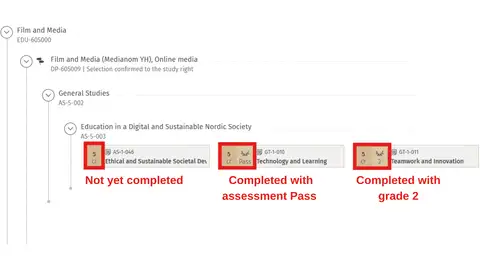
All courses included in your degree are visible in your study plan . Here you can see what courses you have already completed, and what you still need to complete. Completed courses are marked with a laurel wreath.
-
Collection of credits completed
All courses that you have ever completed at Arcada can be found under My profile/Completed credits in Sisu. Courses that do not belong to your future degree certificate are also included here, these courses are/will not be visible in your study plan. In this section of Sisu you can also see failed courses (which are not visible on your transcript of records).
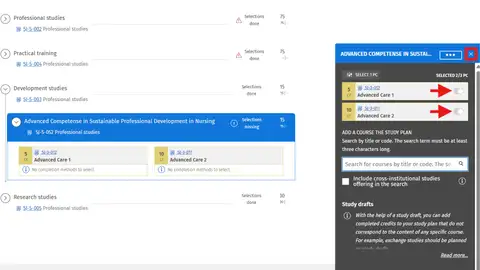
Select development studies and practical training in your study plan
To be able to register for development studies the courses must be selected in your study plan.
Please note that the practical trainings need to be selected in the same way as described below:
Step 1
- Click on Structure of Studies in the left upper corner to see your study plan.
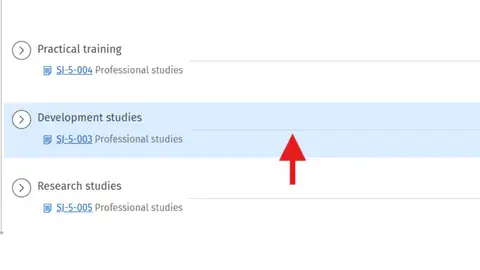
- Scroll down until you see the module for development studies.
Step 2
- Click on the line to see a menu on the right side.
Step 3
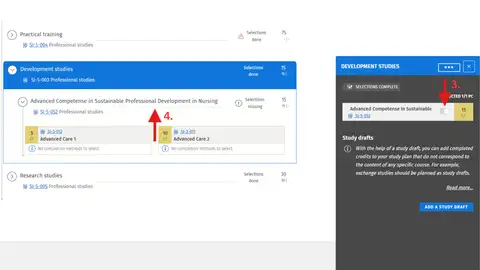
- Select the module you are interested in.
Step 4
- Click on the line to see the courses in the module.
Step 5
- Select the course/s you want to complete.
- Close the menu by clicking the little 'x' in the upper right corner.
Please note that you still need to register for teaching. You will find instructions for that here.
Add completed studies to the study plan
Follow these instructions if you are using the old view of the study plan:
Step 1
- Go to Structure of studies.
- Click the small blue tab to the left of the study plan.
Step 2
- Now you see a menu to the left of the study plan. Look up the completed course you want to place in the study plan and click the arrow.
Step 3
- Now you see the module where you can place the completed course. Look up the correct module and click Select.
Step 4
-
Now you see a menu to the right of the study plan. Click Confirm and close the menu. The completed course is now placed in the study plan.
Follow these instructions if you are using the new view of the study plan:
Step 1
- Go to Structure of studies and click Add courses to the plan in the blue banner at the top of the study plan.
Step 2
- Look up the completed course that you want to add to your study plan.
Step 3
- Now you see the modules that you can add the completed course to. Select the correct module, scroll down and click Continue.
Step 4
- Click Confirm and go to plan. The course is now added to the study plan.
Change to the accessible view of the page Structure of studies
Step 1
- Click on Structure of studies on the left side of the grey bar in Sisu.
Step 2
- Activate the accessible view by flipping the switch here. You can, if you want, change back to the old view of the study plan by flipping the switch back.